Instructions to setup the iPhone to check Mindwatering mail using standard IMAP and POP3.
Note: With IBM/Domino the Traveler option also gives contact and calendar sync which makes it superior to either POP3 or IMAP mail.
1. From the main screen ("dashboard"), click the "Settings" icon with the gear.
2. In the Settings menu, click the "Mail" option. In the more current iOS releases, the verbiage has changed to "Mail, Contacts, Calendars".
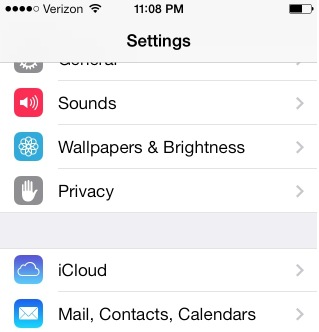
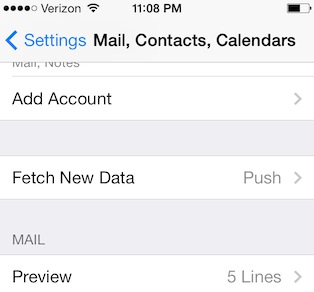
3. In the Mail / Mail, Contacts, Calendars settings menu, click "Add Account"
4. Select the "Other" option (type of account).
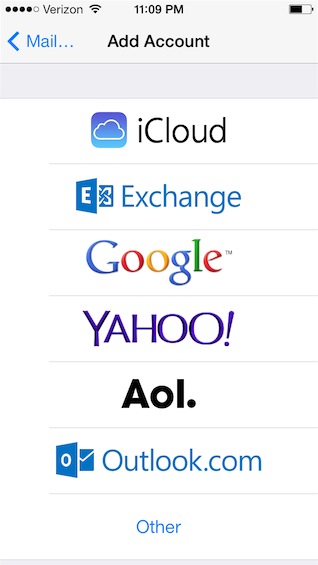
5. You can do either IMAP or POP3 with Mindwatering's Linux/UNIX servers. It's up to you which one.
Again, for IBM/Lotus Domino, we recommend the Traveler option, but IMAP is available.
Note: Before iOS 6, the "IMAP" and "POP" options were displayed after clicking Other in the previous step. In iOS6, there new screens before you select the mail connection type of POP or IMAP. These instructions are updated ones for iOS 6.x.
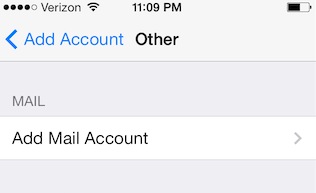
Please select "Add Mail Account".
6. In the "New Account" screen, complete the following fields:
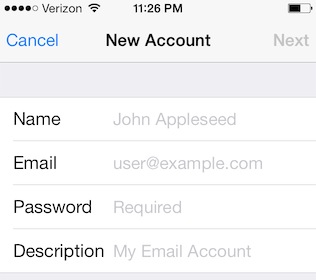
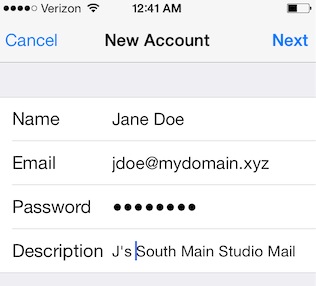
6a. For "Name", enter your name - e.g. Jane Doe
6b. For "Email" (Address in older iOS), enter your email address - e.g. jdoe@mydomain.xyz
6c. For "Password", enter your password (case sensitive).
6d. For "Description", enter your name or your business name or anything else you wish to identify this account - e.g. Jane's Studio Mail
6e. Click "Next"
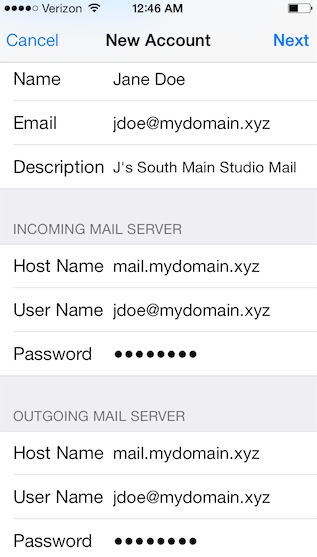
7. The "New Account" screen has been updated with a new sections "Incoming Mail Settings" and "Outgoing Mail Settings".
Assuming you want the IMAP protocol where mail stays on the server, leave the mail account currently selected as "IMAP".
Complete the "Incoming Mail Server" section:
7a, For "Host Name", enter the Mindwatering server where your primary mail file resides - e.g. mail.mydomain.xyz
7b. For "User Name", enter your account ID if on Linux, enter your e-mail if on IBM Lotus Domino. - e.g. abc123_JaneDoe / jdoe@mydomain.xyz
7c. For the "Password" field, you can leave it populated, as it is. You already entered it.
Complete the "Outgoing Mail Server" section:
7d. For "Host Name", enter the Mindwatering server again (typically the same has your home mail server).
7e. For "User Name", again, enter your account ID if on Linux, enter your e-mail if on IBM Lotus Domino. - e.g. abc123_JaneDoe / jdoe@mydomain.xyz
7f. For the "Password" field, again, you can leave it populated, as it is. You already entered it.
Note: The outgoing user name and password fields are NOT optional for Mindwatering mail (SMTP) servers.
7g. Click "Next"
At this point the iPhone is testing the connection.
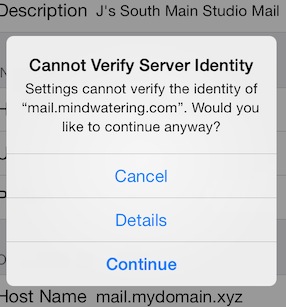
If you are a Linux/UNIX account, you get a SSL warning saying the name of the server identity cannot be verified, this is expected. The servers use self certified SSL certificates.
If you are a IBM Lotus Domino, account, SSL keys are purchased from the registrars for these servers.
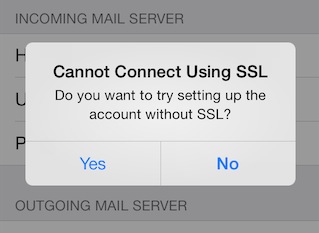
If you cannot get through on SSL, you may see the following dialog. For cases where SSL is not available, you will need to answer "Yes" to the "Do you want to try setting up the account without SSL?" question or choose to use web-based e-mail.
WARNING:
If you get a prompt for the outgoing mail server that authenticated SMTP mail sending is not supported, your internet provider may be forcing you through their mail SMTP servers. If so, you can try just clicking Save after seeing the following dialog. You will definitely have incoming mail, for e-mails you receive, but may not have outgoing mail, for e-mails you send, set up properly. For example, our iPhones on AT&T and Verizon can send outgoing e-mail, but we we connect to a hotel wireless or other hotspot, we can often no longer send SSL e-mail, and often no e-mail at all via the outgoing mail settings (SMTP 25 and 587). There blocks are on purpose generally as an easily effective way for people to block spam e-mail leaving their networks. If you are on a home wireless, you should use the SAME OUTGOING SMTP SETTINGS as your ISP gave you for your e-mail account with them.
It is often that they will block one port (a port is like a doorway) but not another. Our mail servers generally have both 587 and 25 enabled for receiving e-mail. You can go to the advanced settings on your iPhone to update the port number and see if that addresses the issue.
7h. Once you have your settings done, click the "Save" button. (You may be prompted to Save twice.)
previous page
|