Note: FrontPage 2002 publishing steps are basically very similar.
Step 1:
Open the local or source remote server web site.
This is the one that has the files you wish to copy/move to your new web site.
You may want to verify that you have no "broken" links before publishing:
 Steps to Verify Web Site Links Steps to Verify Web Site Links
Step 2:
Run the "Publish Web..." command under "File" on the menu bar.
This command opens up the the publish dialog box. This is where you give FrontPage the information it needs to know to send your files to the server using the Frontpage Extensions.
Complete the following fields in the dialog box:
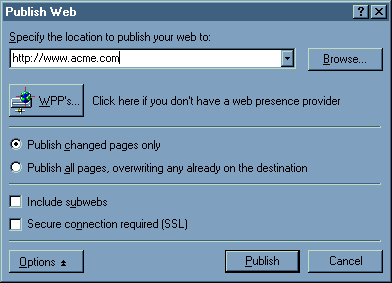
1. Choose or type the destination server and directory of the new web site.
Enter your web site's domain name under the text: "Specify the location to publish your web to:"
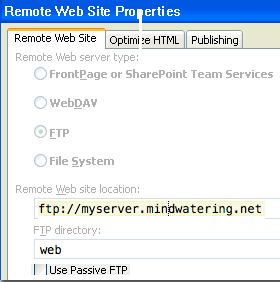
If using FTP, enter in the format:
ftp://myserver.mindwatering.net/web
If using FP Extensions, enter in the format:
http://myserver.mindwatering.net/
2. If this is the first time you are publishing your web site, or you want to make sure everything is sent up to the server, choose the option "Publish all pages, overwriting any already on the destination". Otherwise, always choose the "Publish changed pages only" option.
Note: in FP 2002, you have to click Options first, and then choose which one.
3. If you have subwebs created, you can also include them in the publish by checking "Include subwebs". If you don't know what this is, you probably don't have any, so leave it unchecked. Please note that the FP extensions are NOT installed as they are no longer supported by Microsoft except in extended support on Server 2003 until July 14, 2015. They have not been recommended by Microsoft since last updated in 2002. See MS technote: 2610850.
4. Encryption:
MW MS Windows Servers:
Unless you have purchased a SSL (secure site key) for your web site, it is not enabled / configured on the server. However, the Microsoft NTLM authentication protocol is running on the server. It ensures that your name and password login is encrypted when you login or publish to the web site. Use NTLM when available / enabled.
Linux / UNIX Servers:
Mindwatering's Linux/UNIX servers, SSL is generally installed but self certified for the back-end server name that is not public facing. You are welcome to use SSL and accept it's hash certificate. You have to FTP to publish on Mindwatering's Linux-based servers.
5. Press the Publish button to begin the update.
Note: If publishing is very slow and you are using the FTP method, try checking or unchecking the use Passive FTP option on the Remote Web Site tab of the Publish dialog (FP 2003 only). Unchecking or checking this can speed up publishing depending on various items (firewall and network restrictions).
 Publish Dialog Box Example Publish Dialog Box Example
FP 2000 Publish Web Dialog:
Newer FP 2002/2003 Publish Web Dialog:
6. Enter your username and password. Once you have entered them successfully, you can watch FrontPage list the files as it sends them to the server. When the publish is done, FrontPage will give you a successful message with a hyperlink where you can then view your web site to verify that the publish was successful.
Other Publishing Notes:
- If you get a dialog box asking a yes/no question to add/delete, choose "Yes to All".
This will automatically replace and update new files without you having to confirm each one.
- If you get a navigation question, always choose the "Replace Navigation" option.
previous page
|